

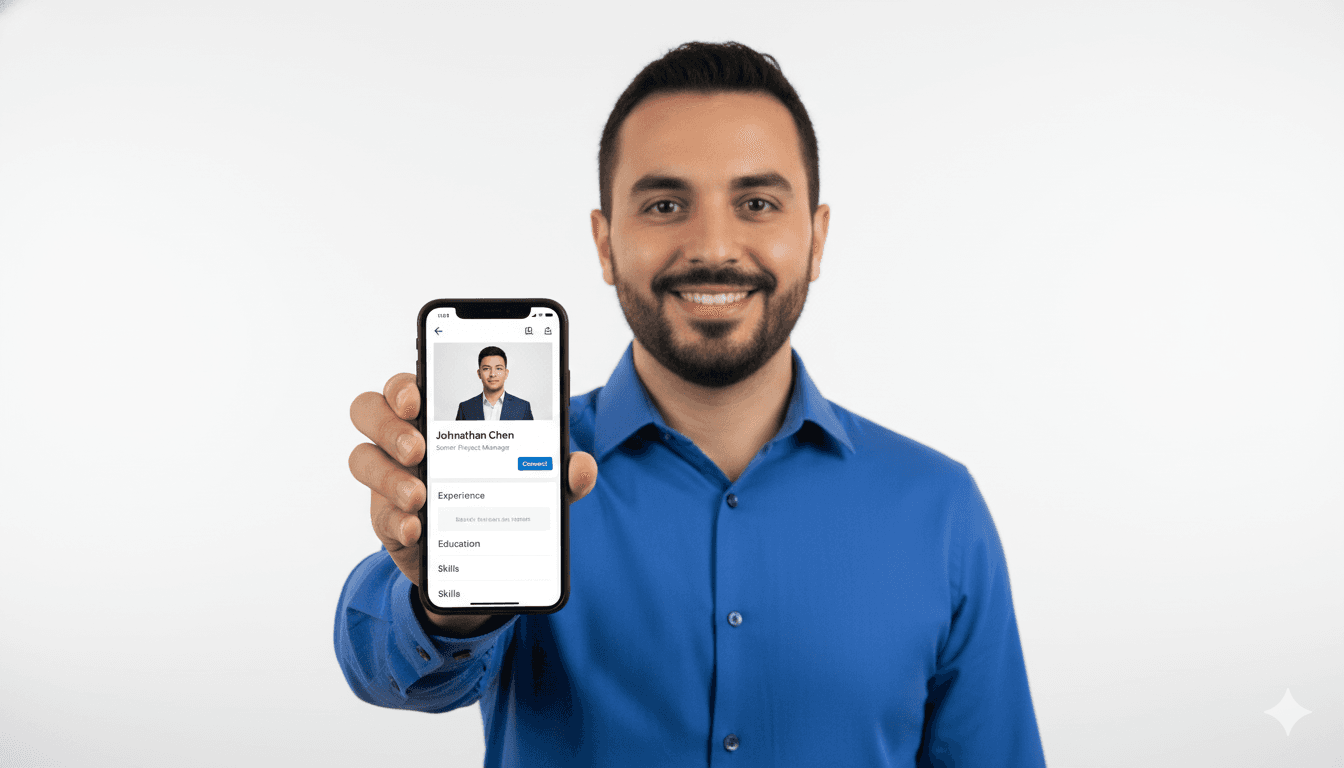
In the professional ecosystem of 2026, LinkedIn is not just a resume repository; it is the global marketplace for talent, business, and networking. With over a billion members, standing out is no longer optional—it's survival. And the very first thing anyone notices about your profile? Your picture.
Data consistently shows that LinkedIn profiles with professional photos get 21 times more profile views and 9 times more connection requests. But in 2026, you don't need a studio appointment to get that competitive edge. You need an AI headshot.
This is your ultimate guide to leveraging AI technology to create the perfect LinkedIn profile picture.
Why LinkedIn Photos Matter More Than Ever
Before we dive into the "how," let's reinforce the "why." Your photo serves three critical psychological functions for recruiters and connections:
- Verification: It proves you are a real person, not a bot or a dormant account.
- Professionalism: It signals that you take your career seriously. A grainy selfie says "I don't care," while a crisp headshot says "I am a professional."
- Likability: Humans are visual creatures. We instinctively trust faces that are visible, well-lit, and smiling.
Step 1: Choosing the Right AI Generator
Not all AI tools are created equal. For LinkedIn, you need a generator that prioritizes realism and professional aesthetics over artistic filters.
CareerLyft.ai is specifically engineered for this purpose. Unlike generic avatar creators that make you look like a superhero or a cartoon, our model is trained on corporate photography. It understands the nuances of:
- Business Attire: Suits, blazers, smart casual.
- Context: Office backgrounds, neutral gradients, blurred cityscapes.
- Lighting: The "Rembrandt" and "Loop" lighting styles favored by top headshot photographers.
Step 2: Selecting Your Source Photos
The quality of your AI output depends on the input. To get the best LinkedIn headshot, follow these rules when uploading to CareerLyft.ai:
- The "Good" Selfie: Use photos where your face is clearly visible.
- Variety: Upload photos with different angles.
- No Obstructions: Avoid sunglasses, hats, or hands covering your face.
- Current Look: Use photos from the last few years so the AI captures your current age and look accurately.
Step 3: Analyzing Your Industry Vibe
One size does not fit all on LinkedIn. Your headshot should match the expectations of your industry. AI gives you the flexibility to choose.
The "Corporate" (Finance, Law, Enterprise Sales)
- Outfit: Dark suit, tie, or structured blazer.
- Expression: Confident, authoritative, slight smile.
- Background: Solid grey, white, or a blurred high-rise office.
- Why: Signals reliability, competence, and adherence to tradition.
The "Creative" (Design, Marketing, Tech)
- Outfit: Smart casual—think quality t-shirt with a jacket, colorful blouse, or turtleneck.
- Expression: Warm, approachable, big smile.
- Background: Bright colors, artistic loft, or outdoor urban setting.
- Why: Signals creativity, openness, and modern thinking.
The "Founder/Leader" (Startups, Consulting)
- Outfit: Polished but relaxed.
- Expression: Visionary, direct eye contact.
- Background: Modern workspace or neutral studio.
- Why: Signals leadership, approachability, and energy.
With CareerLyft.ai, you don't have to guess. You can generate options for all these styles and ask a mentor or peer which one resonates best.
Step 4: Technical Optimization for LinkedIn
Once you've generated your perfect AI headshot, you need to ensure it looks perfect on the platform.
- The Crop: LinkedIn photos are circular. Ensure your face takes up about 60% of the frame. Don't be too far away (body shot) or too close (extreme close-up). The AI usually centers you perfectly, but double-check the crop tool on LinkedIn.
- Resolution: LinkedIn recommends 400x400 pixels, but you should upload a higher resolution (e.g., 2000x2000) to ensure crispness on high-DPI screens. CareerLyft.ai provides high-res downloads by default.
- File Format: JPG or PNG.
- Visibility Settings: Make sure your photo visibility is set to "Public" so recruiters can see you even if they aren't connected.
Step 5: Matching Your Banner Image
Your profile photo doesn't live in isolation; it sits on top of your banner (cover) image. For a truly professional look, there should be visual harmony between the two.
- If your AI headshot has a cool, blue-toned office background, choose a banner with complementary cool tones (e.g., a city skyline or geometric blue pattern).
- If your headshot has a warm, neutral background, choose a warmer banner.
Common Mistakes to Avoid (Even with AI)
- Over-retouching: While AI naturally perfects skin, don't use additional third-party face tuning apps on top of the AI result. You want to look like you, not a wax figure.
- Outdated Styles: Don't choose an AI style that looks like a 1990s glamour shot. Stick to modern, clean lighting.
- Distracting Backgrounds: Even if the AI generates a cool complex background, ask yourself: "Does this distract from my face?" When in doubt, choose a simple blurred background.
The ROI of a Great Profile Photo
Think of your AI headshot as an asset.
- It builds trust before the first meeting.
- It increases click-through rates when you apply for jobs or comment on posts.
- It reinforces your personal brand every time you show up in a feed.
In 2026, there is no excuse for a bad LinkedIn photo. The tools are too good, too cheap, and too fast.
Ready to transform your LinkedIn presence? Stop scrolling and start branding. Generate your new LinkedIn headshot with CareerLyft.ai today.
Check out these related guides: